|
|
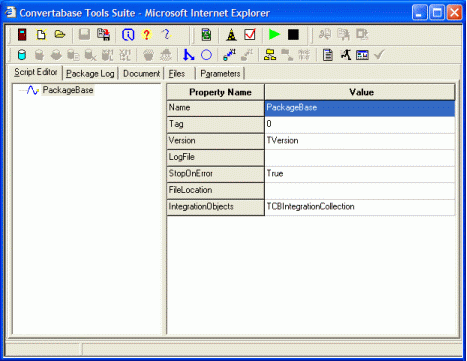
The package level buttons are located on the lower/second
toolbar of the main Package Editor interface. When you
click on the 'Database' button, a new database object
appears in the treeview on the package editor tab. If
you click on the database object, or one of its
children, all the buttons that require a database
will light up. Each package level (or second level)
button represents an object. |
|
 |
The first button on this toolbar is "Database". This button creates an object that allows the user to connect to any database that supports ODBC or OLEDB. |
|
 |
The second button on this toolbar is "Transaction".
This button creates an object which allows the user to begin, end, or encapsulate all the
children of this Object in a transaction (Note: The database you are
using must support transactions). |
|
 |
The third button on this toolbar is "MoveData".
This button creates an object which allows the user to configure the movement from a single
query (a table, a view, or more) against one database and insert,
update, or delete the results in/into another database. |
|
 |
The fourth button on this toolbar is "SQL".
This button creates an object which allows the user to run SQL against a database (selecting,
manipulating, modifying, or editing data). The results of the SQL can be
returned in a variable for use in other Objects in the Package. |
|
 |
The fifth button on this toolbar is "ExcelDocument". This button creates an object which allows the user to import or export data to or from a database, or to or from an Excel file. |
|
 |
The sixth button on this toolbar is "XMLDocument". This button creates an object which allows the user to import or export data to or from a database, or to or from XML files. |
|
 |
The seventh button on this toolbar is "XMLNode". This button creates an object that specifies XML node information for reading or writing. |
|
 |
The eighth button on this toolbar is "Cleanup".
This button creates an object that will step through a SQL selection from a database, calling
each of its children against a like-named field in the result set.
(Note: The SQL selection should contain a key field so that the values
can be applied back to the database.) |
|
 |
The ninth button on this toolbar is "CleanField".
This button creates an object that will apply constraints to a field; defaulting values,
stripping characters, and applying formatting to data which will be
written back to the database. |
|
 |
The tenth button on this toolbar is "Branch".
This button creates an object that allows the user to control the flow of the execution based
on the value in a variable. One or more child Objects can be called,
based on the variable passed to this object. |
|
 |
The eleventh button on this toolbar is "Iterate". This button creates an Object that allows the user to control the number of times this Object's children are called, based on a variable or a count. |
|
 |
The twelfth button on this toolbar is "Move Files". This button creates an Object which establishes a connection to another computer via HTTP, HTTPS, FTP or SFTP. |
|
 |
The thirteenth button on this toolbar is "File". This button creates an Object that "Gets" (Down loads) or "Puts" (Uploads) a file to or from a server connected by the "Move Files" Object. |
|
 |
The fourteenth button on this toolbar is "ParseFile". This button creates an Object which allows the user to open a file (4 terabytes max.) and begin to analyze the data for import into a database. |
|
 |
The fifteenth button on this toolbar is "ParseRecord".
This button creates an Object which will hold the record information for a file that is being
parsed into one or more records from a flat file. Adding more than one
ParseRecord object to a ParseFile object allows us to parse a file into more than one
destination table or file with a single pass through the source. |
|
 |
The sixteenth button on this toolbar is "ParsePoint". This button creates an Object that will hold the information about specific pieces of data which will be imported into its parent object--ParseRecord.
|
|
 |
The seventeenth button on this toolbar is "Document".
This button creates an Object which allows the user to include any file in the Package that is
needed to build that Package such as Excel files to populate, a database for
look ups, etc. |
|
 |
The eighteenth button on this toolbar is "Execute".
This button creates an Object which allows the user to start other programs like Excel, or an
executable that has already been completed to perform part of a
conversion, web pages, etc. The Execute object can be instructed to wait for the process it launched to complete before allowing the package run to continue, continue the package run immediately, or wait for a specified number of seconds before allowing the package run to continue. |
|
 |
The nineteenth button on this toolbar is "Input". This button creates an Object that allows the user to gather information during run time. This object is not recommended for use in Packages that will run unattended (services and automated timed executions are unattended processes) This Object can retrieve file names, date and times, simple values, etc., during runtime. |
|
 |
The twentieth button on this toolbar is "Validate". This button creates an Object that allows the user to compare Variables and determine if
the Package has produced valid data. The Validation object can report a
user-defined message out to the interface, or report to a log file. The
validation can also terminate the Package in an error state if that is
desired. |
|
 |